Try Your App in HighLevel
The preview can show your app's pages, but to work with real contacts, calendars or conversations it needs a sub-account. Try it in HighLevel installs a test copy of your app in a sub-account you pick, and connects the preview to it.
Your app reads and changes the real data of the sub-account you pick. If your app sends messages or edits records, it does that for real. Pick a sub-account without real clients, such as a sandbox account.
Install the test app
-
In the builder, click Try it in HighLevel at the top right.
App Studio opens your test app in a new tab and waits for you. If the tab doesn't open, allow pop-ups for the Developer Portal and try again, or click Open it again.
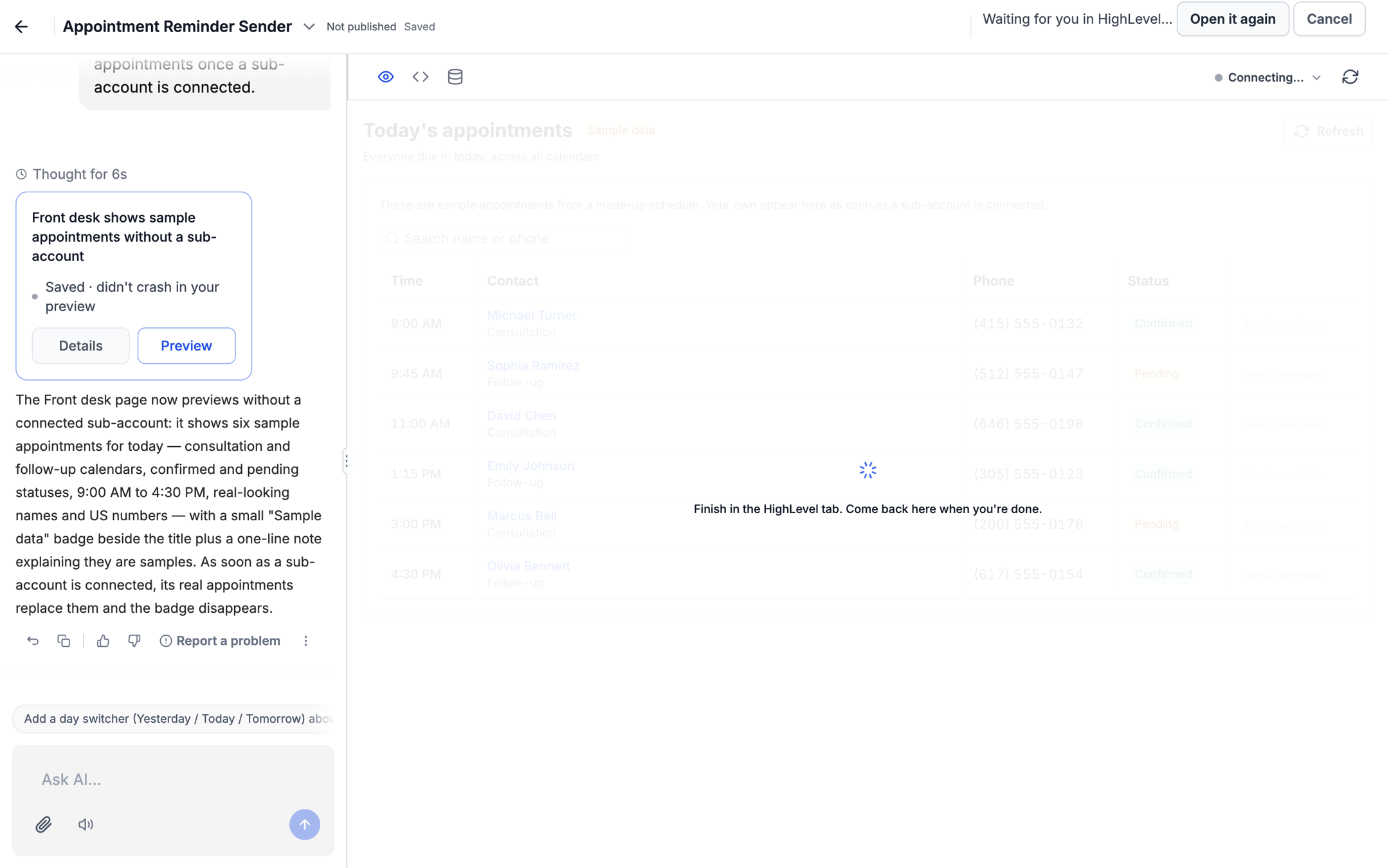
-
In the new tab, click Install. The test app is marked with the version draft.
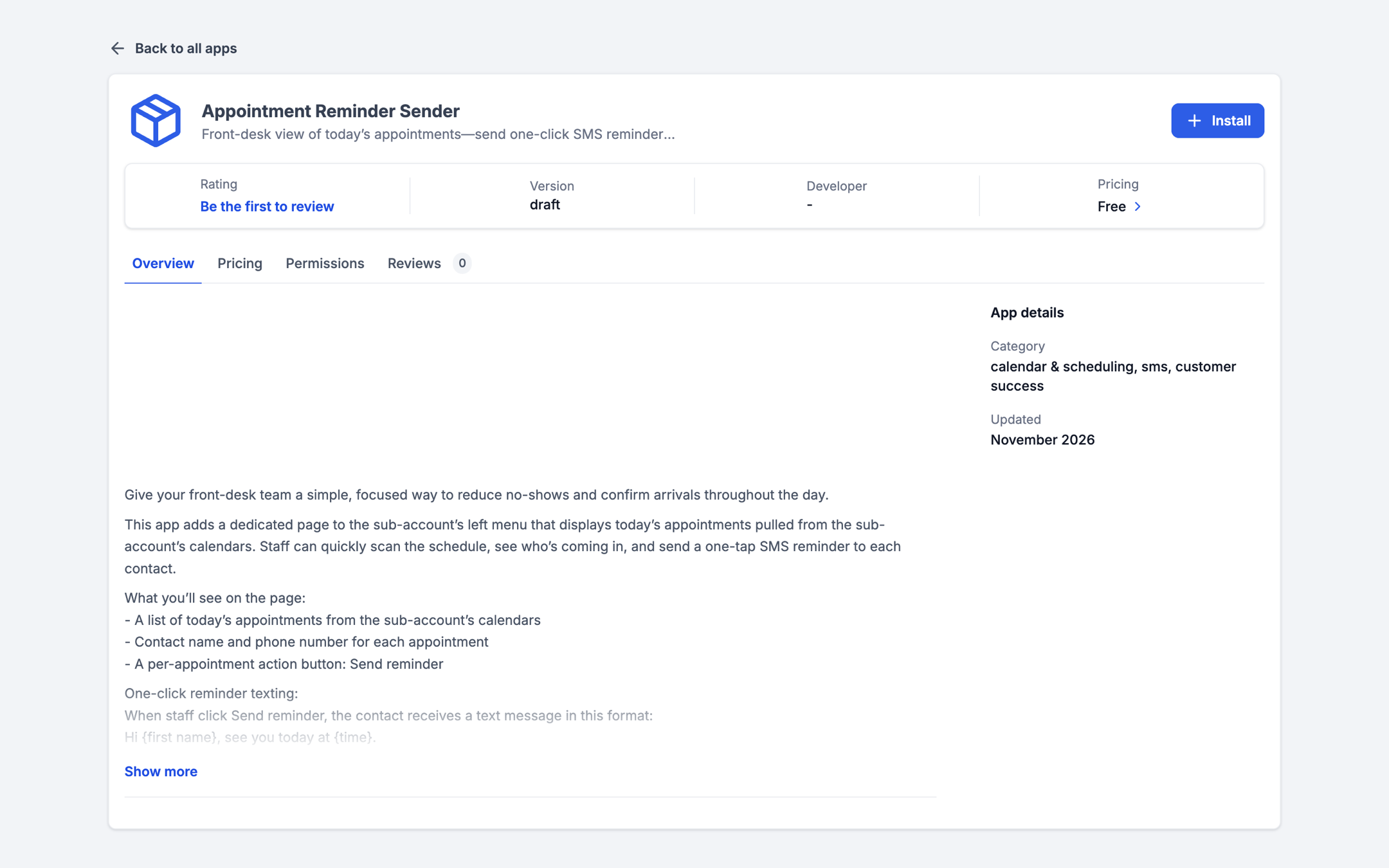
-
Sign in to HighLevel if you're asked to.
-
Choose the sub-account to install it in, then allow the permissions the app asks for.
-
Come back to App Studio. The preview now uses that sub-account's data.
You only do this once per sub-account. After that, every new build is deployed to your test app automatically; it can take a couple of minutes before it shows up.
Open your app inside HighLevel
The preview runs your page outside HighLevel. To see it the way your clients will, open the sub-account you installed it in and find your page in the left menu (or in the app's settings, if that's where you put it).
If you add a new page after installing, refresh HighLevel to see it in the left menu.
When your app needs new permissions
If a change makes your app call a HighLevel API it didn't use before, it needs a new scope. App Studio tells you in the chat (Settings updated from your code), and the button at the top asks you to reinstall or approve the new access in your test sub-account. Do that before you test the change.
Things to check before you publish
- The page loads in the sub-account, and shows that sub-account's data.
- Every button does what you asked, including the messages it sends and the records it changes.
- Empty states look right, for example a day with no appointments.
- A sub-account user who isn't an admin can do what they need to.
- Nothing shows data from another sub-account.
If something is wrong, describe what you did, what you expected and what happened, in the chat. A screenshot helps. See Prompting best practices.