Publish and Share
Publishing turns your latest build into a version your clients can install. You then share an install link with them.
Publish a version
-
Click Publish at the top right of the builder.
-
Check the publish panel:
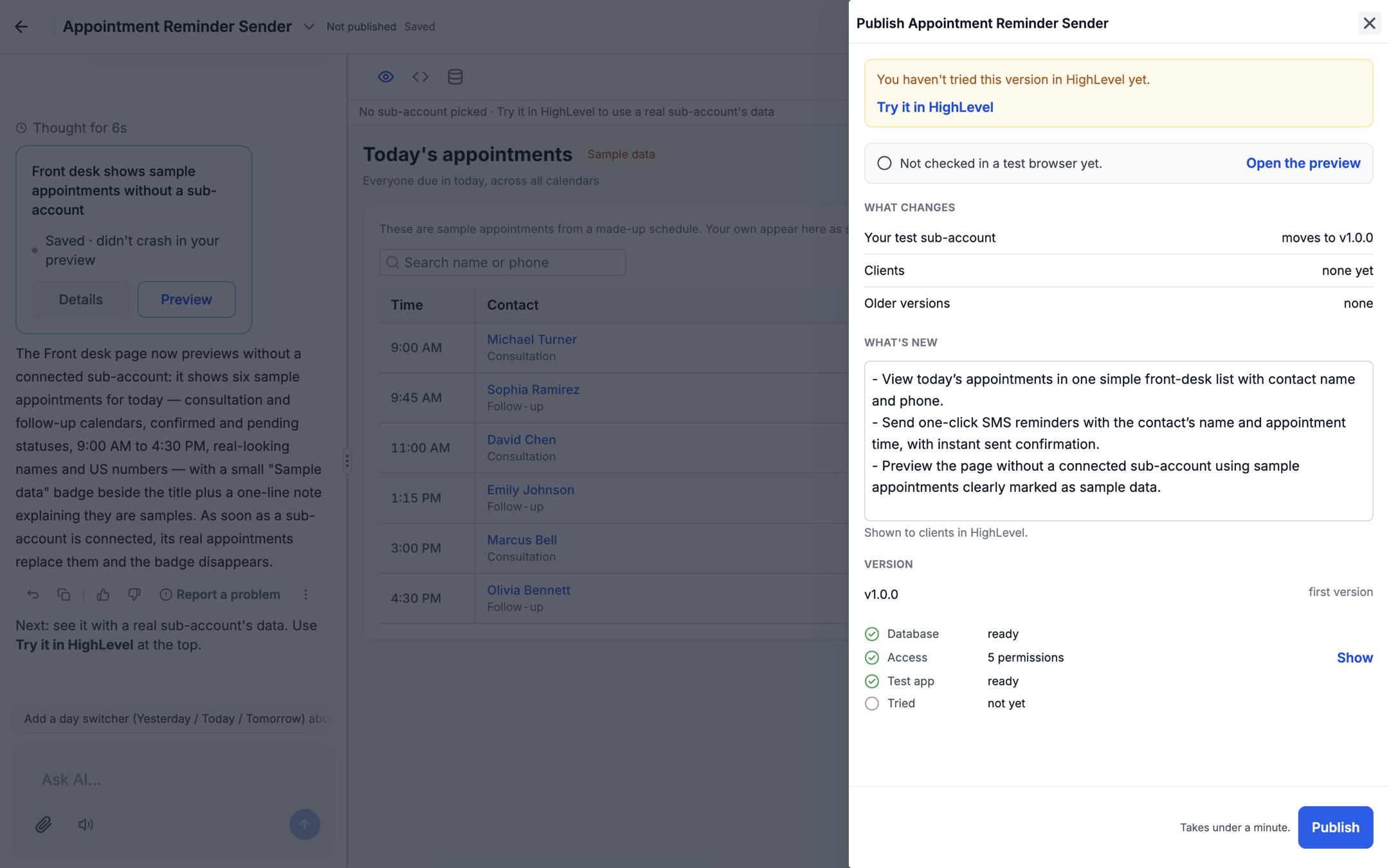
Section What it shows Warnings For example "You haven't tried this version in HighLevel yet". We recommend you try it in HighLevel first. What changes What happens to your test sub-account, your clients, and older versions when you publish. What's new A short note for your clients, shown to them in HighLevel. App Studio drafts it from your changes; edit it before you publish. Version The version number this publish gets, and what kind of change it is. Checks Database, Access (the permissions your app asks for; click Show to see them), Test app and Tried. -
Click Publish. It takes under a minute. Keep the tab open until it's done.
Share the install link
When the version is live, App Studio gives you its install link. You can find it again any time under Share at the top of the builder.
- HighLevel link: the standard link on
gohighlevel.com. - Grey-labeled link: the same link on
leadconnectorhq.com, for agencies that don't show the HighLevel brand to their clients.
Your clients open the link, pick their sub-account, and click Allow. The Share panel also lists who has installed your app.
App Studio apps are private on the Marketplace: they don't appear in the public Marketplace listing, and people install them from your link.
Versions and updates
Your first version is v1.0.0. Each publish after that gets a new version number, depending on what changed:
| Change | Version | What your clients see |
|---|---|---|
| Code only (no new pages, settings or access) | stays v1.0.0 | They get the new build. Nothing is asked of them. |
| A fix | v1.0.1 | They get it automatically. |
| New pages or features | v1.1.0 | They get it automatically. |
| New access (new scopes) | v2.0.0 | They keep the current version until they approve the new access. |
- Your clients keep the live version until you publish again. Changes you make in the builder don't reach them before that.
- If one update both removes and adds access, publish the removal first.
- If your latest build changes your app's database, App Studio applies the change to your live data when you publish. If it can't, nothing goes live and your clients stay on the current version.
- An app can have up to 7 versions. When you reach the limit, App Studio shows "Version limit reached"; delete an old version in your app's settings before you test or publish again.
Your app's listing
App Studio drafts your app's name, tagline, description and category from your chat. To change them, or to add a logo, click the app name, then All settings.
Delete an App Studio app
Deleting an App Studio app also deletes its hosted app (live and test copies), its database and data, its saved builds, and its keys and secrets. Active resources are deleted once every install is removed.