App Studio
App Studio is an AI app builder inside the Developer Portal. You describe the app you want in plain language, and App Studio writes the code, builds the app, hosts it, and turns it into a Marketplace app you can install in your sub-accounts.
You don't need to set up hosting, OAuth or scopes yourself. App Studio handles them, and you keep full access to the code.
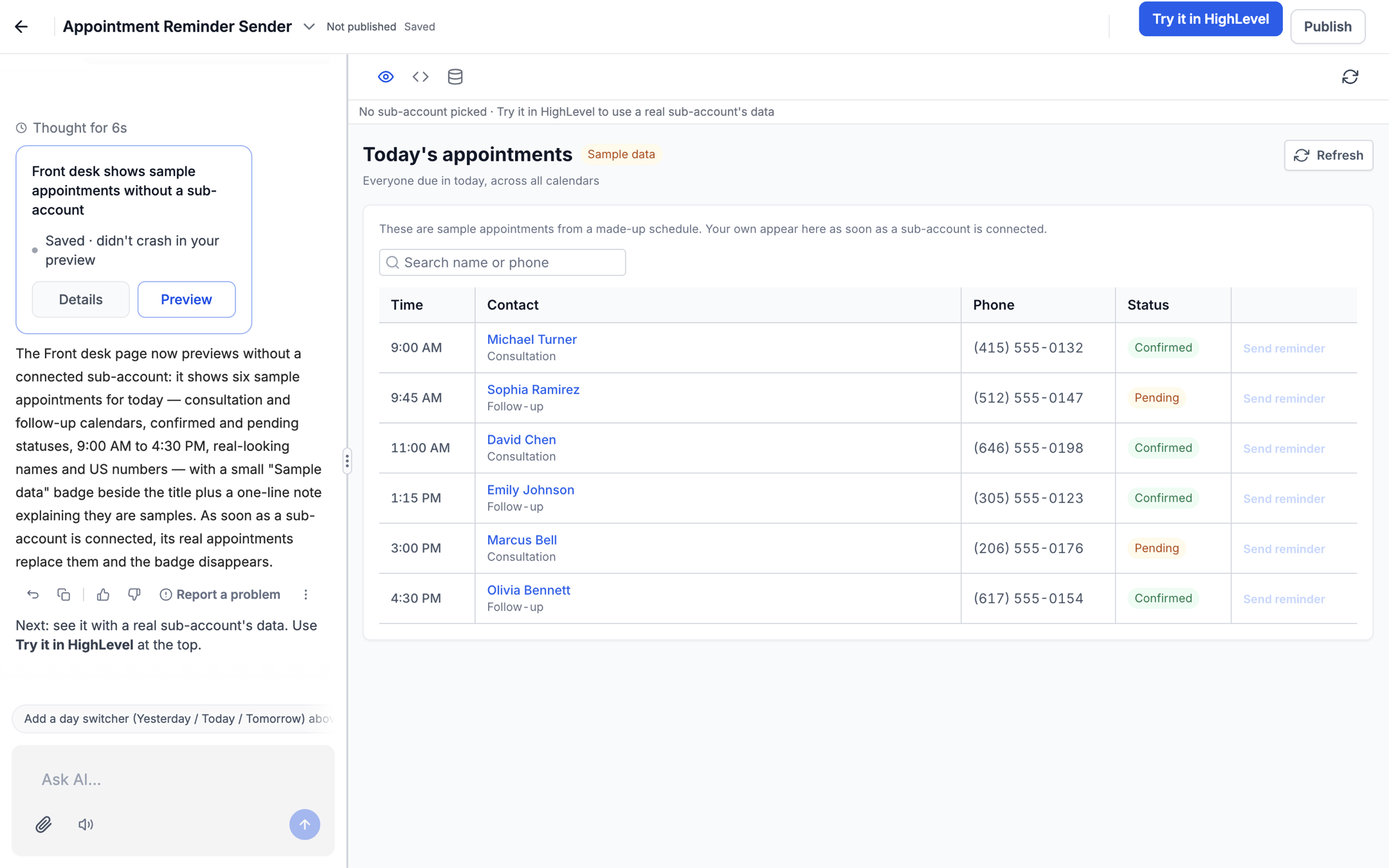
App Studio is in public beta under Labs in the Developer Portal. Features and limits may change before general availability.
How it works
- Describe your app. Tell App Studio what the app should do and who uses it.
- Watch it build. App Studio plans the work, writes the code, and shows the running app in a live preview.
- Refine it in chat. Ask for changes one at a time. Every build is saved as a version you can go back to.
- Try it in HighLevel. Install a test copy in one of your sub-accounts and use it with real data.
- Publish and share. Publish a version and send your clients the install link.
What you can build
App Studio builds apps that run inside a HighLevel sub-account. Today it can build:
- Custom pages in the sub-account's left menu, or in your app's settings.
- Apps that read and change CRM data, such as contacts, opportunities, calendars and conversations, including sending messages and booking appointments.
- Apps that react to HighLevel events through webhooks.
- Apps that know who is signed in (the HighLevel user and sub-account).
- Apps with their own database, for data your app stores itself.
- Apps that call outside services, with API keys you add as secrets.
Some Marketplace modules can't be built in chat yet. Add them to your app by hand from the app's settings:
App Studio does not build payment providers, external billing, or snapshots and templates.
App Studio apps run in sub-accounts. Apps that need agency-level permissions, or pages shown at the agency level, aren't supported yet.
Who can use App Studio
You can create an App Studio app when your developer account meets one of these:
- The developer account is at least 90 days old.
- The developer account is linked to a HighLevel agency (you signed up or signed in as an agency admin or owner).
For a team, App Studio checks the team owner's developer account, not the member's.
If your account doesn't qualify yet, App Studio shows "App Studio isn't available for this account yet". You can still build Marketplace apps the classic way, see Create a Marketplace App.
Team members
The team owner can always use App Studio. Other team members need the Build apps with App Studio permission, which the team owner turns on per member in Team settings.
Turn on App Studio
From the Developer Portal
- Sign in to the Developer Portal.
- Open Labs from your profile menu, or go to marketplace.gohighlevel.com/labs.
- On the Marketplace App Studio card, turn on Enable for me. If you're the team owner, you can turn on Enable for my team instead.
- Click Open App Studio.
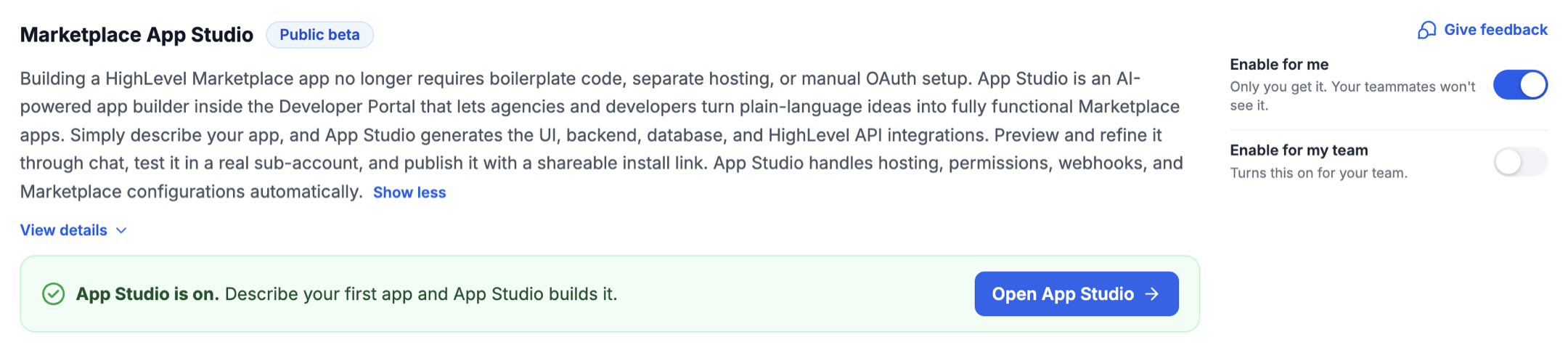
You can also start from My apps: choose Build with App Studio when you create a new app.
From your HighLevel agency
Agency admins and owners can start without visiting the Developer Portal first:
- Sign in to HighLevel and switch to your Agency view (not a sub-account).
- Go to App Marketplace (app.gohighlevel.com/integration).
- Click Try App Studio on the banner at the top of the page.
HighLevel signs you in to the Developer Portal in a new tab and opens App Studio. If you don't have a developer account yet, you're asked to create one first.
The Try App Studio banner isn't shown to trial or sandbox agencies.